
Connecting to Amnezia VPN
If you don't have an Amnezia VPN subscription yet, you can purchase it on the official Amnezia website (mirror).
After paying for Amnezia VPN, you'll receive an email with a Subscription Key at the address you provided during payment.
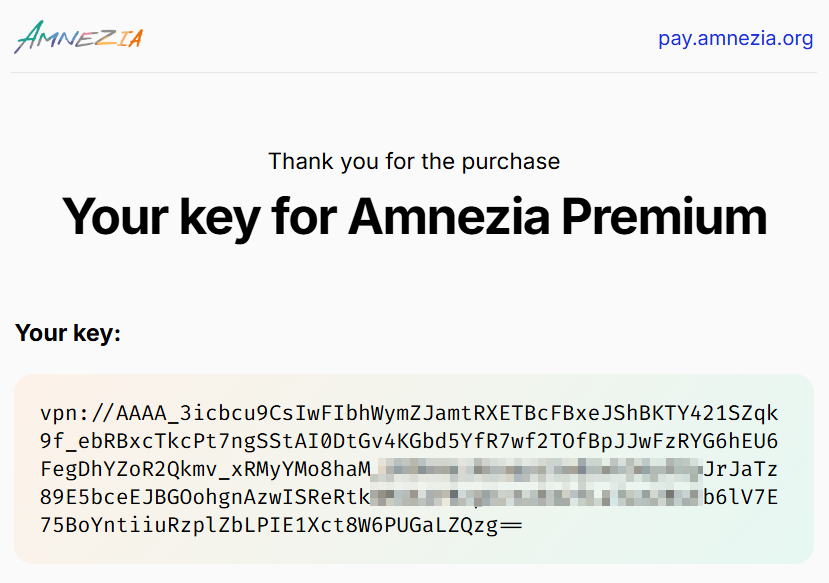
If you didn't receive the email or lost your Subscription Key, write to our Telegram chat or email [email protected].
Windows
To connect to VPN on some versions of Windows, you need to use a configuration file in .conf format and a special version of the AmneziaWG app, since the main AmneziaVPN app does not work on them:
- AmneziaWG for Windows 7 x32
- AmneziaWG for Windows 7 x64
- AmneziaWG for Windows 8/10 x32
- AmneziaWG for Windows 8 x64
You can download the configuration file in your Personal Dashboard (mirror) in the Configuration files section.
- For Windows 10/11 x64, download and install AmneziaVPN from the official download page (mirror).
If you encounter an error during installation stating "the system cannot find MSVCP140.dll or MSVCP141.dll", run the vc_redist.x64.exe file located in the C:\Program Files\AmneziaVPN folder.
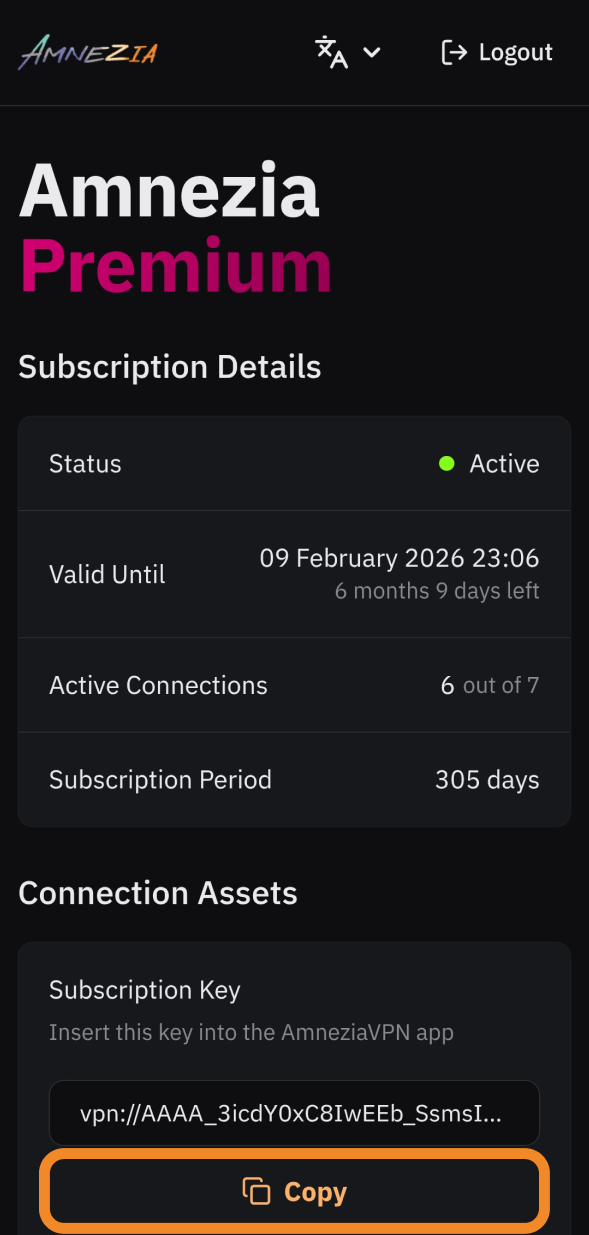
- Copy your Subscription Key vpn:// from the Personal Dashboard (mirror) or from your order email.
-
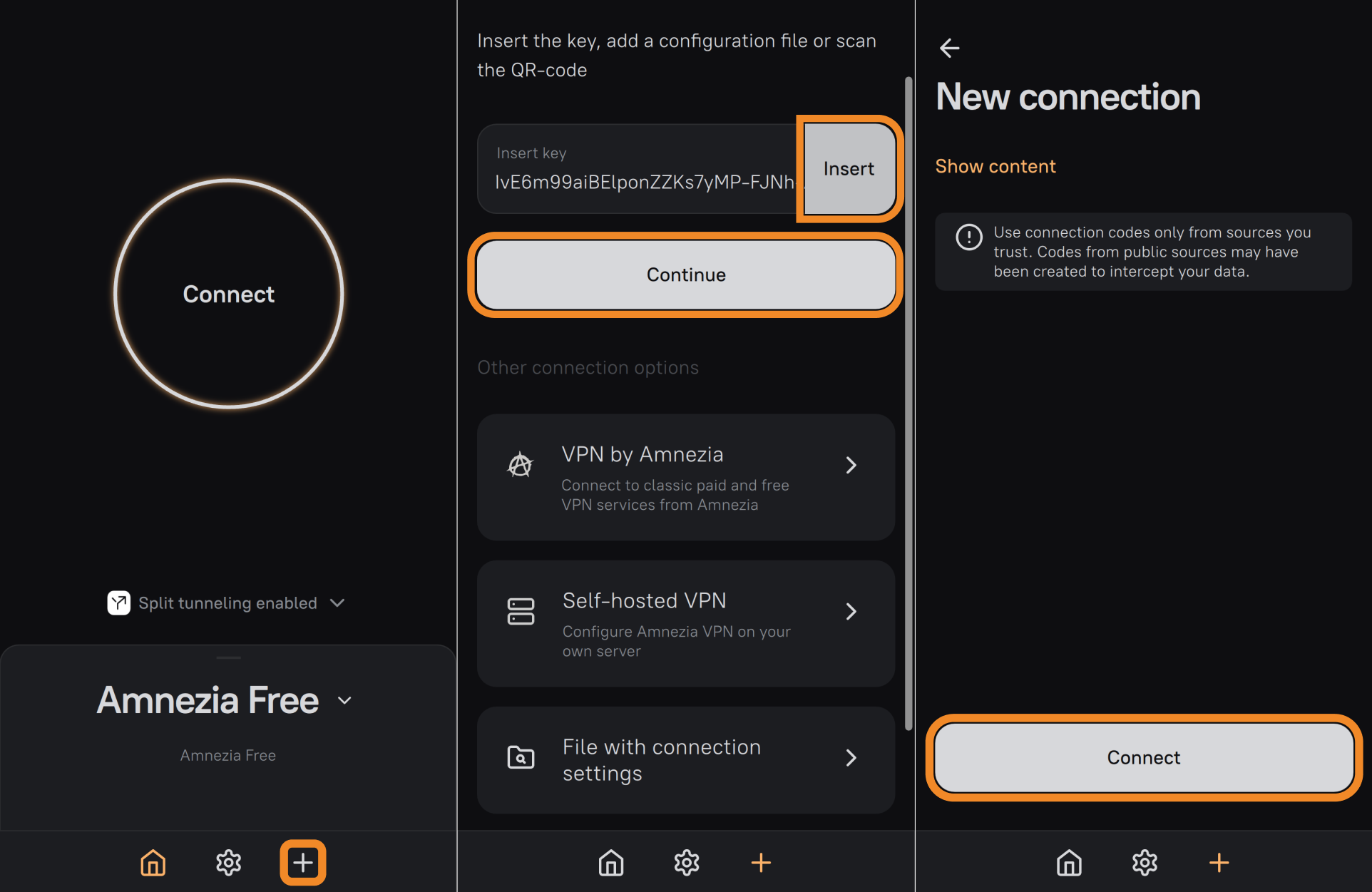
In the AmneziaVPN app, click ➕ (plus icon) or click Let's get started if you don't have any other connections.
-
Click Insert next to the key field → Continue → Connect.
Your Amnezia VPN connection is now created — ready to connect.
macOS
- Download and install AmneziaVPN from the official download page (mirror).
Check that the app has the necessary permissions:
Go to: System Preferences > Privacy & Security. Navigate to the General section and click Allow for the respective application.
The AmneziaVPN app should be added to the list of allowed apps in System Preferences > Firewall > Options.
Ensure the app has internet access permissions in Privacy > Network.
- Copy your Subscription Key vpn:// from the Personal Dashboard (mirror) or from your order email.
-
In the AmneziaVPN app, click ➕ (plus icon) or click Let's get started if you don't have any other connections.
-
Click Insert next to the key field → Continue → Connect.
Your Amnezia VPN connection is now created — ready to connect.
Linux
AmneziaVPN doesn't work on all Linux distributions.
Check compatibility and installation specifics before downloading: Installing AmneziaVPN on Linux.
-
Download and install AmneziaVPN from the official download page (mirror).
-
Copy your Subscription Key vpn:// from the Personal Dashboard (mirror) or from your order email.
-
In the AmneziaVPN app, click ➕ (plus icon) or click Let's get started if you don't have any other connections.
-
Click Insert next to the key field → Continue → Connect.
Your Amnezia VPN connection is now created — ready to connect.
Android
-
Download and install AmneziaVPN from the official download page (mirror).
-
Copy your Subscription Key vpn:// from the Personal Dashboard (mirror) or from your order email.
-
In the AmneziaVPN app, click ➕ (plus icon) or click Let's get started if you don't have any other connections.
-
Tap Insert next to the key field → Continue → Connect.
Your Amnezia VPN connection is now created — ready to connect.
iOS
iOS Usage Specifics in Russia
In the Russian App Store, you won't be able to download the AmneziaVPN app, as it's hidden at the request of Roskomnadzor. Therefore, we've prepared instructions that will help you install AmneziaVPN on iOS by changing your App Store account region or creating a new Apple account in another region.
If you have an outdated AmneziaVPN app version 4.8.5.0 or lower installed on your iOS device, you can try updating it to the latest version without changing your region: go to iOS system settings → General → iPhone Storage → AmneziaVPN → Offload App → Reinstall App.
Also, on iOS devices, you can use DefaultVPN — this is our alternative app, available in the Russian App Store.
If you choose AmneziaWG, you can only use configuration files from your Personal Dashboard to create a connection — the Subscription Key vpn:// won't work there. When you generate a configuration file, it uses 1 active-connection slot (max 7).
A configuration file only allows you to connect to one location, and the configuration file itself can only be used on one device at a time. This means that if you want to connect 7 devices on iOS using the AmneziaWG app, each device will only have access to one of the seven locations.
Alternatively, you can add 7 different configuration files to one device, giving it access to 7 different locations, but in this case, you won't be able to connect other devices — the active connections limit will be exhausted.
_i_c_a-3ebac741bbe421e2f8218fde375236a2.png)
If the option of using the AmneziaWG app doesn't suit you, you can always change your App Store region to download the AmneziaVPN app, or download DefaultVPN from the App Store of any region to create a connection via Subscription Key vpn:// and have the ability to connect to any of the available locations on 7 different devices.
_i_c_a-1bcaa7b4d44f71409e56c2d0191b8fea.png)
DefaultVPN on iOS
- Copy your Subscription Key vpn:// from the Personal Dashboard (mirror) or from your order email.
-
Download and open the DefaultVPN app.
-
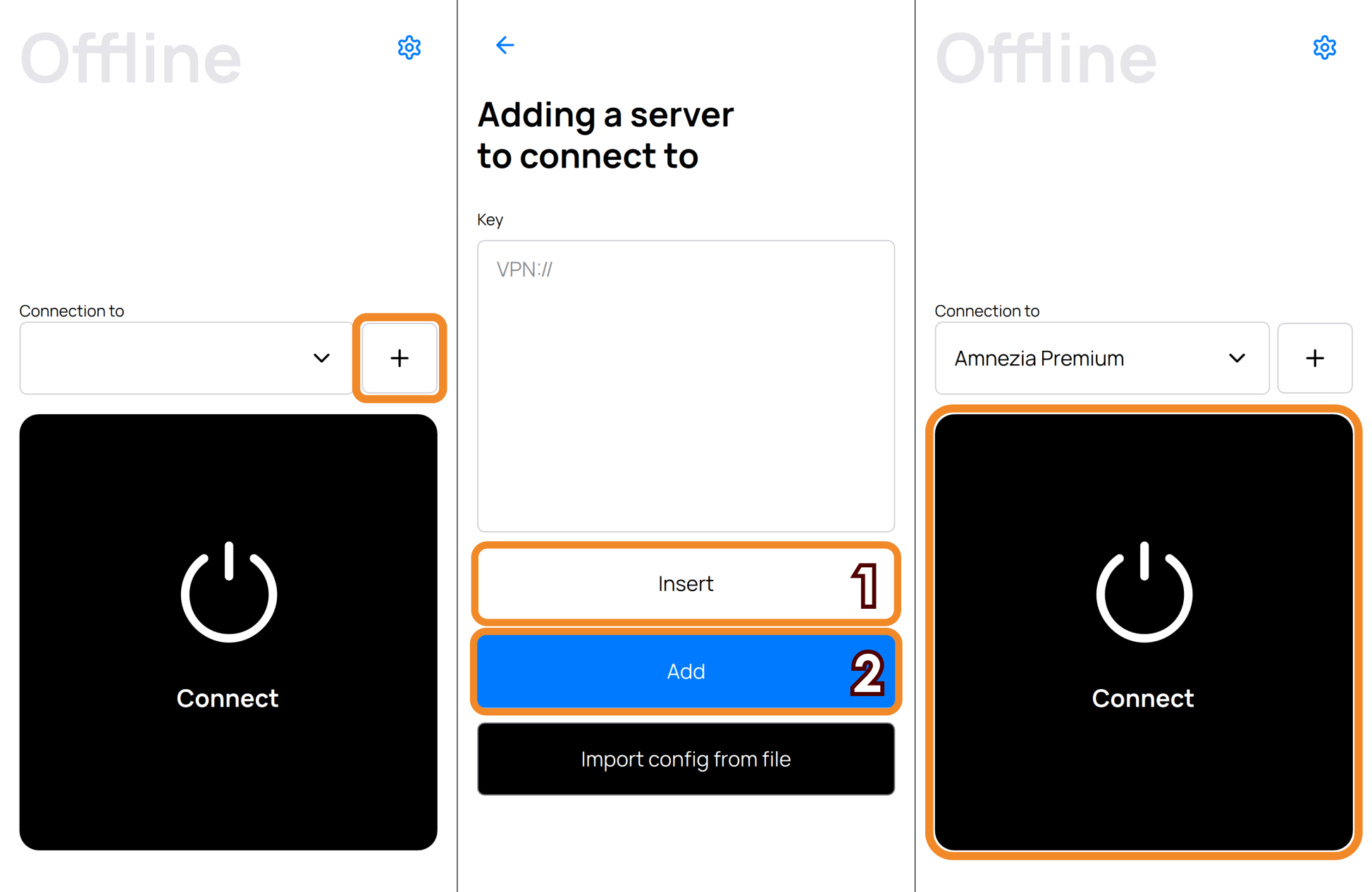
Tap ➕ (plus icon) → Insert below the key field → Add.
Your Amnezia VPN connection is now created — ready to connect.
If you encounter an error, verify you've fully copied the key.
AmneziaVPN on iOS
- Download and open the AmneziaVPN app.
If the AmneziaVPN app is unavailable in the App Store, use the DefaultVPN app or change your App Store region if you need to download AmneziaVPN specifically.
- Copy your Subscription Key vpn:// from the Personal Dashboard (mirror) or from your order email.
-
In the AmneziaVPN app, tap ➕ (plus icon) or tap Let's get started if you don't have any other connections.
-
Tap Insert next to the key field → Continue → Connect.
Your Amnezia VPN connection is now created — ready to connect.
AmneziaWG on iOS
Instead of the AmneziaWG app, we strongly recommend using our other apps:
- DefaultVPN — if you have a Russian App Store region and don't have the AmneziaVPN app installed
- AmneziaVPN — if it's already on your device or available in the App Store
- Download and open the AmneziaWG app.
- Download a configuration file from the Configuration files section in your Personal Dashboard (mirror) or from the AmneziaVPN app on another device.
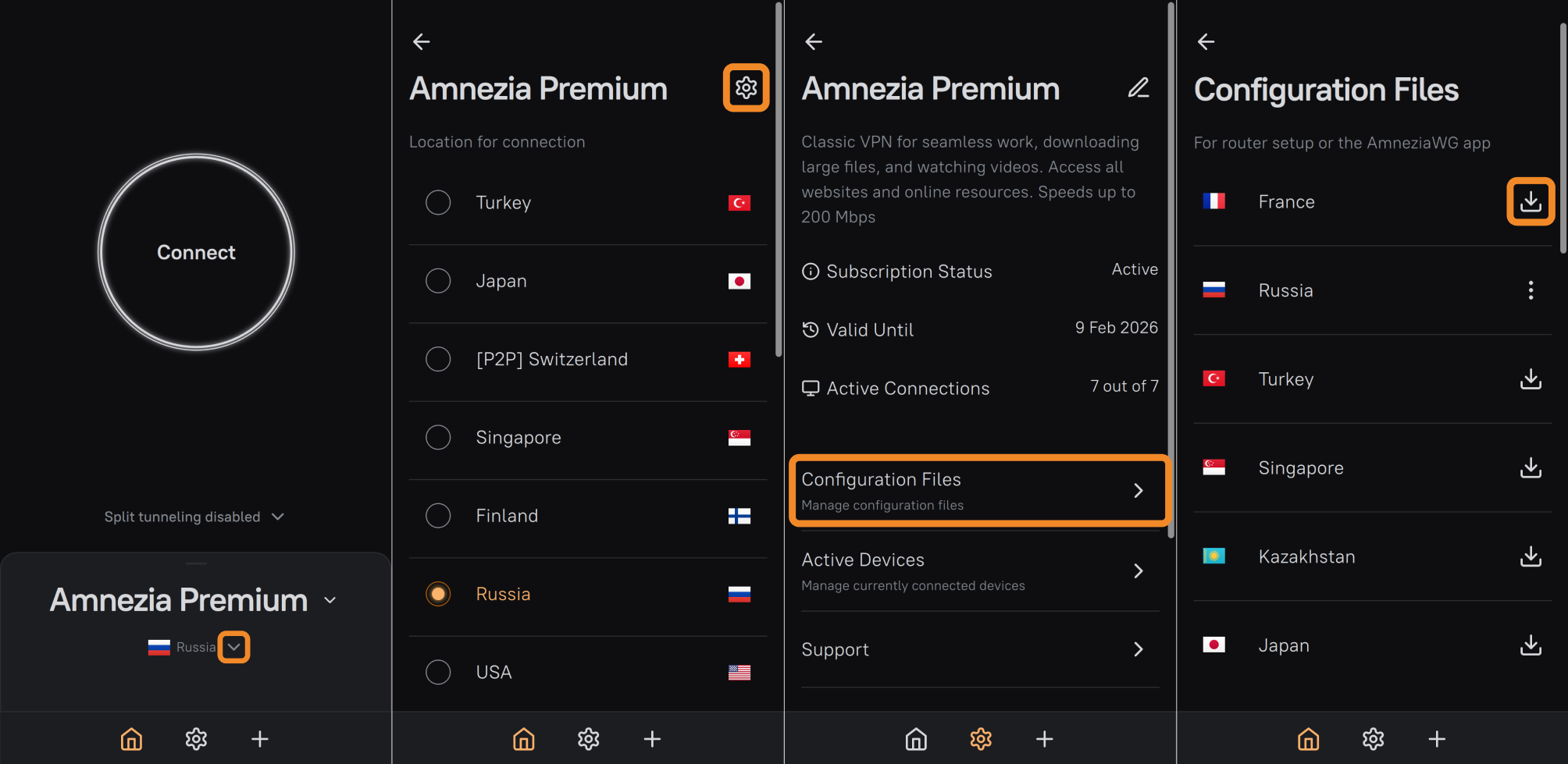
- Transfer the downloaded
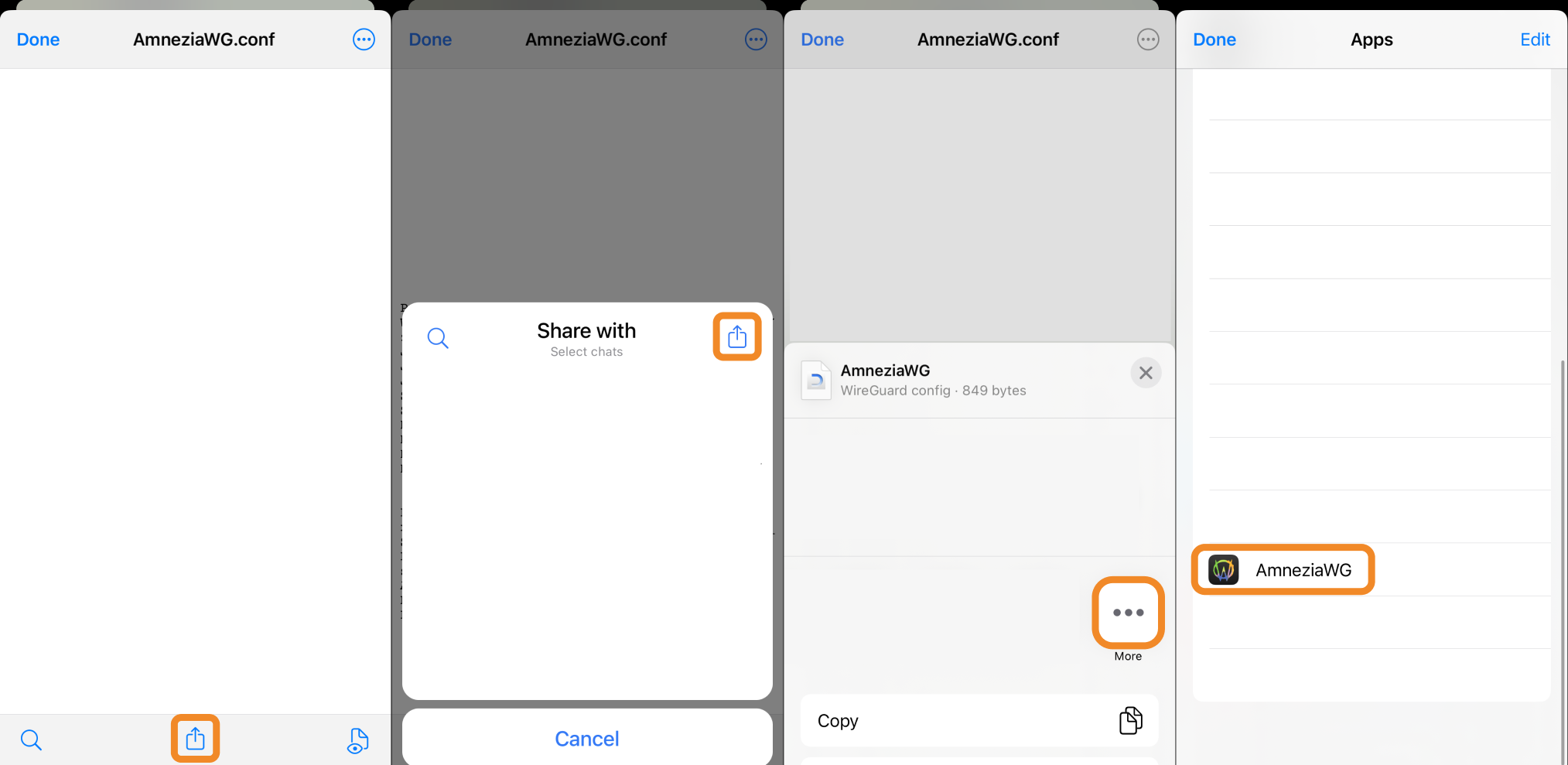
.conffile to your iOS device. - Open the received file and tap the Share icon, then tap Share again.
- Scroll through the list of apps to the right until you find the More button and tap it.
- Select AmneziaWG from the list of apps and confirm adding the configuration.
- Tap the switch to the right of the location name to enable VPN.
Routers
To set up a VPN connection on a router, it must support the AmneziaWG protocol.
Currently, supported routers are Keenetic (version 4.2 and above) and OpenWRT (versions 23.05.01 - 23.05.05).
Keenetic
Ensure your Keenetic router firmware version is 4.2 or newer. If necessary, connect to the router and update it.
Then follow our Keenetic setup instructions.
OpenWrt
Ensure your OpenWrt router firmware version is 23.05.01 - 23.05.05.
Check your router's compatibility (alternative resource).
Then follow our OpenWrt setup instructions or refer to the repository with alternative instructions.
If you have any questions, write to our Telegram chat or email [email protected].